By ATS Staff - November 21st, 2026
Cybersecurity Linux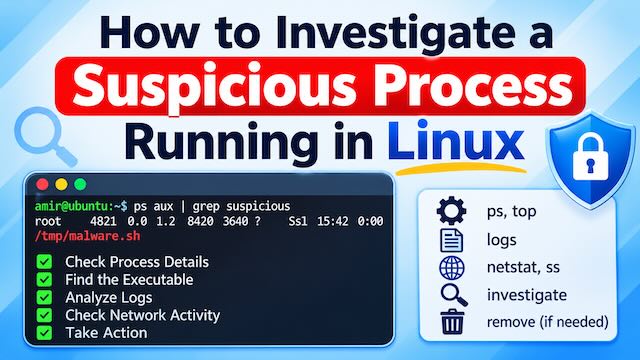
Linux is widely recognized for its stability, security, and reliability. However, like any operating system, it can become a target for malware, unauthorized access, cryptocurrency miners, rootkits, and other malicious activities. One common indication of a compromised Linux system is an unfamiliar or suspicious process consuming system resources, establishing unexpected network connections, or running under an unusual user account.
Investigating suspicious processes is an essential Linux system administration and cybersecurity skill. Whether you manage a production web server, cloud infrastructure, or a personal Linux machine, knowing how to identify and investigate suspicious processes can help prevent security breaches, data theft, and service disruptions.
This article explains how to identify, analyze, and investigate suspicious processes using built-in Linux utilities and additional security tools.
1. Identify Running Processes
The first step is to examine currently running processes and identify anything unusual. Use the following command:ps aux- USER: The account running the process.
- PID: The process identification number.
- %CPU: CPU utilization.
- %MEM: Memory utilization.
- VSZ: Virtual memory size.
- RSS: Resident memory usage.
- STAT: Process state.
- START: Process start time.
- COMMAND: The command used to start the process.
ps -eo pid,ppid,user,%cpu,%mem,etime,stat,cmd --sort=-%cputopsudo apt install htop
htop- Processes consuming excessive CPU or memory without a legitimate reason.
- Unknown executable names.
- Processes running as root unexpectedly.
- Applications running from
/tmp,/var/tmp, or hidden directories. - Multiple instances of unfamiliar processes.
- Processes with unusually long execution times.
2. Investigate the Process Executable Location
One of the most important steps is determining where the suspicious process executable is located. First, identify its PID:ps aux | grep suspicious_processsuspicious_process with the actual process name.
For example, if the PID is 2456, execute:
sudo readlink -f /proc/2456/exesudo cat /proc/2456/cmdline | tr '\0' ' 'sudo readlink -f /proc/2456/cwdsudo readlink -f /proc/2456/root- Executables running from
/tmpor/dev/shm. - Hidden executable files in user home directories.
- Programs disguised with names similar to legitimate Linux services.
- Executables located in unexpected directories.
- Processes running deleted executables.
systemd running from /tmp/.systemd should be investigated immediately. The legitimate systemd executable normally resides in a system directory.
3. Examine Process Details Using /proc
Linux exposes detailed information about running processes through the/proc virtual filesystem.
Each running process has its own directory identified by its PID.
For example:
ls -la /proc/2456/cat /proc/2456/status- Process name.
- Process state.
- Parent process ID.
- User and group IDs.
- Memory usage.
- Thread count.
sudo cat /proc/2456/environ | tr '\0' '\n'sudo tr '\0' ' ' < /proc/2456/cmdlinesudo ls -la /proc/2456/fd//proc filesystem is particularly useful because it provides detailed runtime information without requiring additional monitoring software.
4. Investigate Network Connections
Suspicious processes frequently communicate with external servers for command-and-control operations, downloading additional malware, or transferring stolen information. Use the following command to inspect active network connections:sudo ss -tulpnsudo ss -tpn state establishedsudo lsof -Pan -p 2456 -isudo lsof -i -n -P- Connections to unfamiliar public IP addresses.
- Unexpected outbound connections.
- Processes listening on unusual ports.
- Applications communicating with suspicious destinations.
- Connections to unknown servers over uncommon ports.
tcpdump and Wireshark can be useful.
Example:
sudo tcpdump -i any -nn5. Examine Parent and Child Processes
Understanding how a process started is essential when investigating suspicious activity. Use:pstree -pps -o pid,ppid,user,lstart,cmd -p 2456ps -fp PARENT_PID- An unauthorized shell session.
- A compromised web application.
- A modified startup script.
- An unexpected cron job.
- A malicious service.
- An exploited application running under a web server account.
www-data, investigate whether it originated from Apache, Nginx, PHP-FPM, or a web application.
A web application spawning an unfamiliar shell or downloading an executable should be treated as a potential security incident.
6. Check File Permissions and Executable Integrity
After identifying the executable, inspect its permissions and ownership.ls -lah /path/to/executablefile /path/to/executablesha256sum /path/to/executablestat /path/to/executable- Unexpected ownership by root.
- Unusual executable permissions.
- Recently modified system binaries.
- Hidden executable files.
- Unexpected SUID or SGID permissions.
sudo find / -type f -perm -4000 -ls 2>/dev/nullsudo dpkg -V7. Investigate Scheduled Tasks and Persistence Mechanisms
Malware often attempts to survive system restarts by creating scheduled tasks or modifying startup configurations. Check the current user's cron jobs:crontab -lsudo crontab -lls -lah /etc/cron.d/
ls -lah /etc/cron.daily/
ls -lah /etc/cron.hourly/
ls -lah /etc/cron.weekly/systemctl list-units --type=service --allsystemctl list-unit-files --type=service --state=enabledsystemctl status suspicious.servicesystemctl cat suspicious.servicels -lah /etc/systemd/system/
ls -lah /etc/init.d/
ls -lah /etc/rc.local8. Check Authentication and System Logs
System logs can provide valuable evidence about when suspicious activity started and how an attacker may have gained access. On Ubuntu and Debian, inspect authentication logs:sudo less /var/log/auth.logsudo grep "Failed password" /var/log/auth.logsudo grep "Accepted" /var/log/auth.loglast -awhosudo journalctl -xesudo journalctl -u suspicious.service- Unexpected SSH logins.
- Login attempts from unfamiliar IP addresses.
- New user accounts.
- Unexpected privilege escalation.
- Services restarting repeatedly.
- Applications launching unusual commands.
9. Use Advanced Tools for Deeper Investigation
When built-in Linux utilities are insufficient, several specialized tools can provide additional visibility.lsof
Lists open files, network sockets, and other resources associated with processes.sudo lsof -p 2456strace
Tracks system calls made by a process.sudo strace -f -p 2456chkrootkit
Checks for common indicators of rootkits.sudo apt install chkrootkit
sudo chkrootkitrkhunter
Checks system files and configurations for common rootkit indicators.sudo apt install rkhunter
sudo rkhunter --checkClamAV
An antivirus engine that can scan files for known malware.sudo apt install clamav
sudo freshclam
sudo clamscan -r /tmp /var/tmp10. What to Do When a Suspicious Process Is Confirmed
If your investigation indicates that a process is malicious, avoid immediately terminating it without considering the security implications. On a production server, killing a process may destroy valuable forensic evidence or trigger a restart mechanism that launches it again. Follow a structured incident-response approach. Step 1: Preserve evidence Record the PID, executable location, command line, process owner, network connections, timestamps, and relevant logs. For example:ps auxww
sudo ss -tulpn
sudo lsof -p 2456
sudo readlink -f /proc/2456/exesudo kill -TERM 2456sudo kill -KILL 2456SIGKILL only when necessary because the process cannot perform cleanup.
Step 4: Investigate persistence
Remove malicious cron jobs, unauthorized systemd services, modified startup scripts, and other persistence mechanisms after preserving evidence.
Step 5: Investigate the initial entry point
Determine whether the compromise originated from:
- Weak SSH credentials.
- An exposed or vulnerable web application.
- An outdated Linux package.
- An insecure PHP script.
- Stolen credentials.
- An exposed database or administrative interface.
11. Practical Investigation Example
Consider an Ubuntu web server where CPU utilization suddenly increases to 90%, even though normal website traffic has not changed. You discover an unfamiliar process namedkworkerx consuming excessive CPU resources.
Start by locating the process:
ps aux | grep kworkerxsudo readlink -f /proc/2456/exe/tmp/.cache/kworkerxsudo tr '\0' ' ' < /proc/2456/cmdlinesudo lsof -Pan -p 2456 -ips -o pid,ppid,user,cmd -p 2456sudo crontab -l
systemctl list-units --type=service --allfile /tmp/.cache/kworkerx
sha256sum /tmp/.cache/kworkerx12. Best Practices for Linux Server Security
Preventing unauthorized processes is easier than recovering from a compromised server. Consider implementing the following security practices:- Keep the operating system updated: Regularly install security patches and updates.
- Secure SSH access: Disable password authentication where practical, use SSH keys, and restrict root login.
- Configure a firewall: Use UFW, nftables, or an appropriate cloud firewall to restrict unnecessary network access.
- Monitor system resources: Use tools such as htop, Netdata, or Prometheus to detect unusual CPU and memory consumption.
- Review running services: Disable unnecessary services and investigate unfamiliar processes.
- Implement file integrity monitoring: Use tools such as AIDE to detect unexpected changes to critical system files.
- Secure web applications: Keep PHP, Python, frameworks, plugins, and dependencies updated.
- Monitor authentication: Review SSH access logs and configure Fail2ban where appropriate.
- Maintain backups: Keep regular, tested, and preferably offline or immutable backups.
- Centralize logging: Forward important system and security logs to a separate, protected logging server.
Conclusion
Investigating suspicious Linux processes requires more than simply identifying an unfamiliar process name or terminating an application consuming excessive resources. A proper investigation involves examining process execution paths, parent-child relationships, environment variables, network connections, file permissions, scheduled tasks, authentication logs, and system services. Linux provides powerful built-in utilities such asps, top, ss, lsof, strace, and journalctl that make it possible to investigate most suspicious processes without installing extensive monitoring software.
For system administrators and cybersecurity professionals, developing a systematic investigation approach is essential for maintaining secure, reliable, and trustworthy Linux infrastructure.
Remember: An unfamiliar process is not necessarily malicious, but an unexplained process deserves investigation—especially when it runs with elevated privileges, executes from temporary directories, or communicates with unknown external servers.
Add an incident-response warningClarify safe containment steps
Popular Categories
Agile 2 Android 2 Artificial Intelligence 52 Backup Tools 2 Blockchain 2 Cloud Storage 5 Code Editors 2 Computer Languages 13 Cybersecurity 10 Data Science 19 Database 10 Digital Marketing 3 Ecommerce 4 Email Server 2 Finance 3 Google 6 HTML-CSS 2 Industries 6 Infrastructure 4 iOS 3 IoT 1 Javascript 6 Latest Technologies 46 Linux 11 LLMs 11 Machine Learning 32 Maths & Stats 1 Mobile 3 MySQL 3 Open source 1 Operating Systems 7 PHP 2 Postgres 1 Project Management 3 Python Programming 29 Rust 2 SEO - AEO 5 Software Development 51 Software Testing 4 Web Server 8 Work Ethics 2